Your VSC email is protected from spam and other junk mail by Microsoft’s email quarantine system. Messages that are deemed to be malicious will not be delivered to your mailbox, but instead will be held in quarantine for review. When this occurs you will receive an email with a summery of the quarantined message(s) where you can choose to delete, review, or release the message. You can also check the quarantine manually if desired. If no actions are taken these quarantined messages will be deleted after 15 days. Instructions for each method can be found below.
Contents
Quarantined email alert
When a message arrives in your quarantine you will receive an email from quarantine@messaging.microsoft.com with details about the blocked message. You can use the provided buttons to review, release, or delete the message:
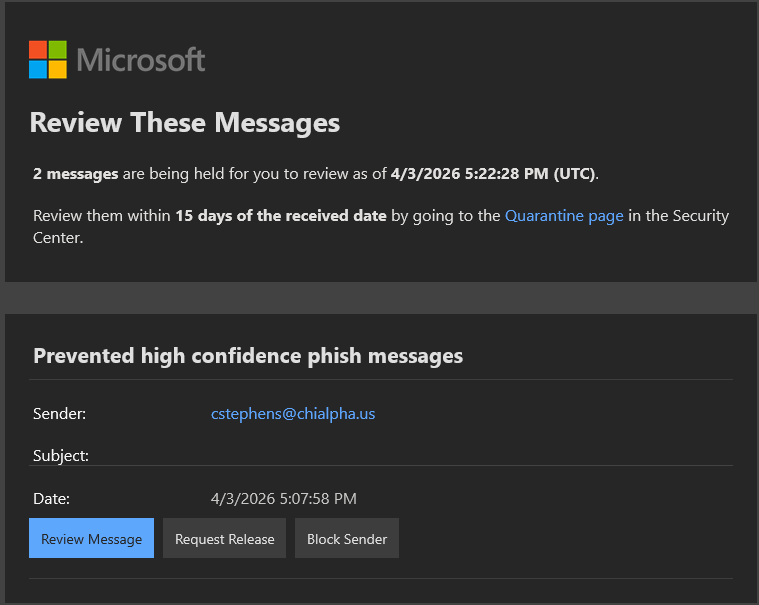
If you choose to Review the message your browser will launch and direct you to Microsoft’s Security Website. After signing in with your VSC account you will then be able to review, delete, or request delivery of the messages in your quarantine.
Microsoft’s Security website
This site can be accessed via the Review Message button in a quarantine email alert, or manually by going to https://security.microsoft.com/quarantine . After signing in with your VSC account you will see a list of all of your quarantined messages, along with actions you can take on each message:
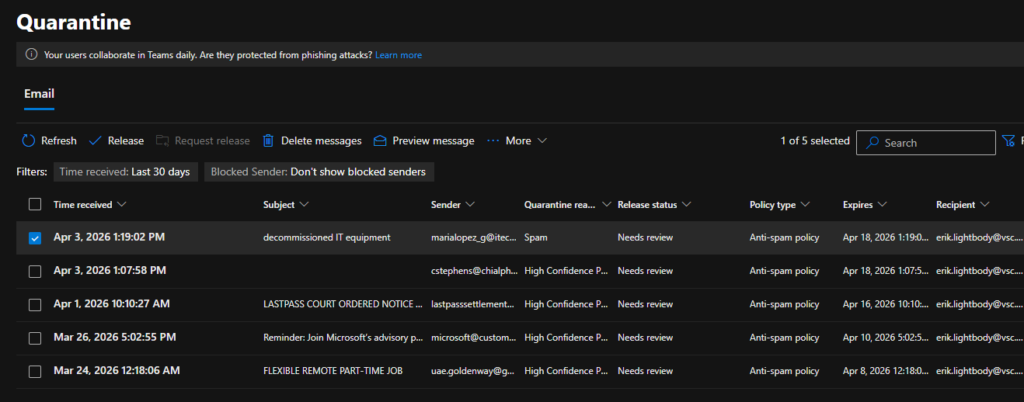
After selecting a message you can use the buttons along the top row to either Release (deliver the message to your inbox), Delete (deletes it from quarantine), or Preview (shows a preview of the body of the message). If no action is taken messages will be deleted 15 days after they arrive, which is reflected in the “Expires” column.
Managing shared mailbox quarantine
Shared Mailboxes can also have messages quarantined, and these are most easily managed by interacting with the email alert that is delivered to that mailbox. You can also manage Shared Mailboxes you have access to via https://security.microsoft.com/quarantine . After signing in with your VSC account, click the Filter button in the top right and change the “recipient address” to the address of the Shared Mailbox:
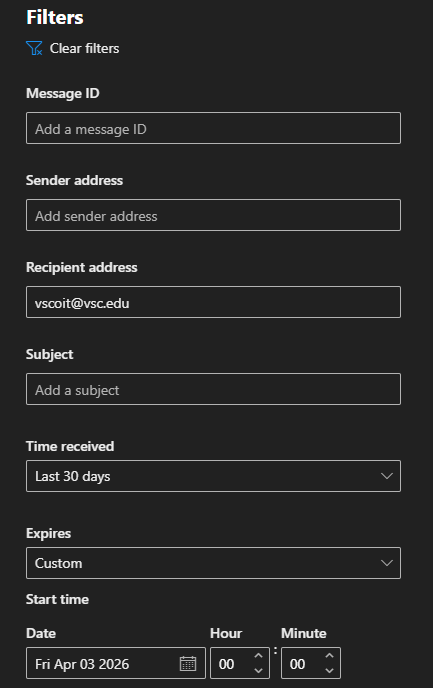
You will be able to see which mailbox’s quarantine you are managing by looking at the applied filters just below the action buttons:

We would love to hear from you
As we continue to improve the VSC IT support site, we would love to get your feedback. Please sign-in to the feedback form linked below to share your thoughts.