Most of the time you will access Canvas from a computer, but for quick tasks it can be convenient to use the Android or iOS mobile apps. If you are having trouble accessing the apps, you may want to try clearing the app cache. Here’s how.
Clearing the App Cache
iOS device
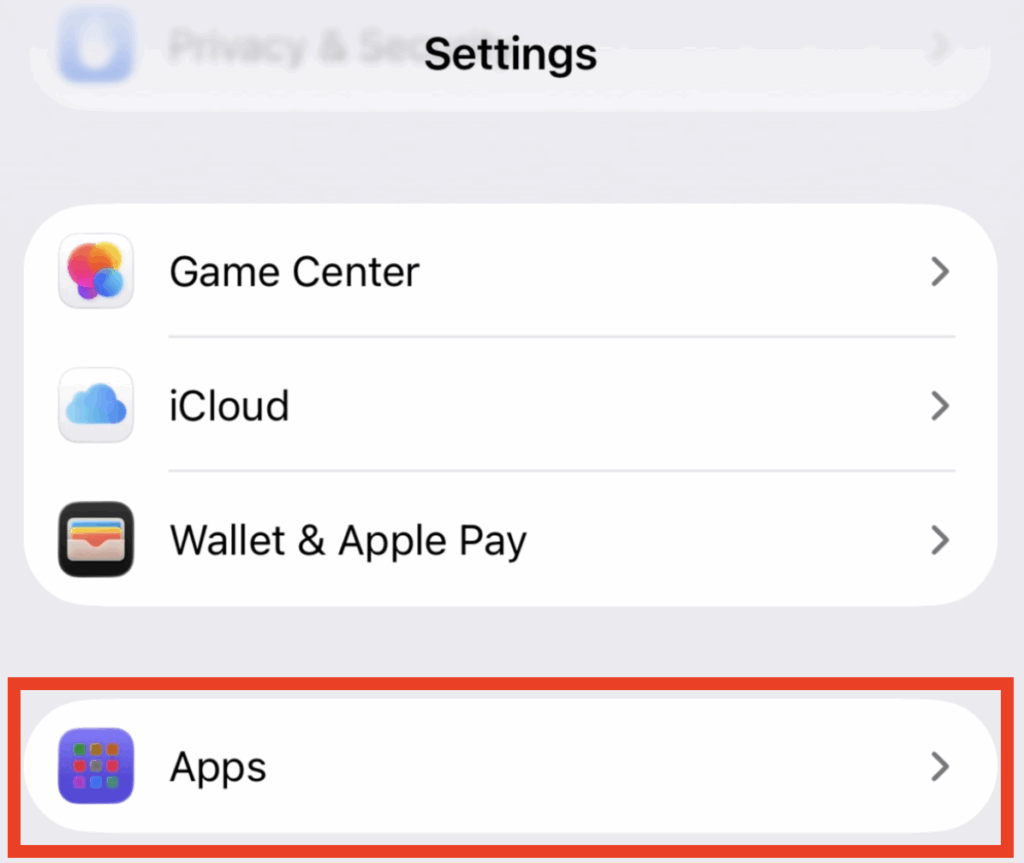
Open the Settings app on your iOS device and click on Apps.
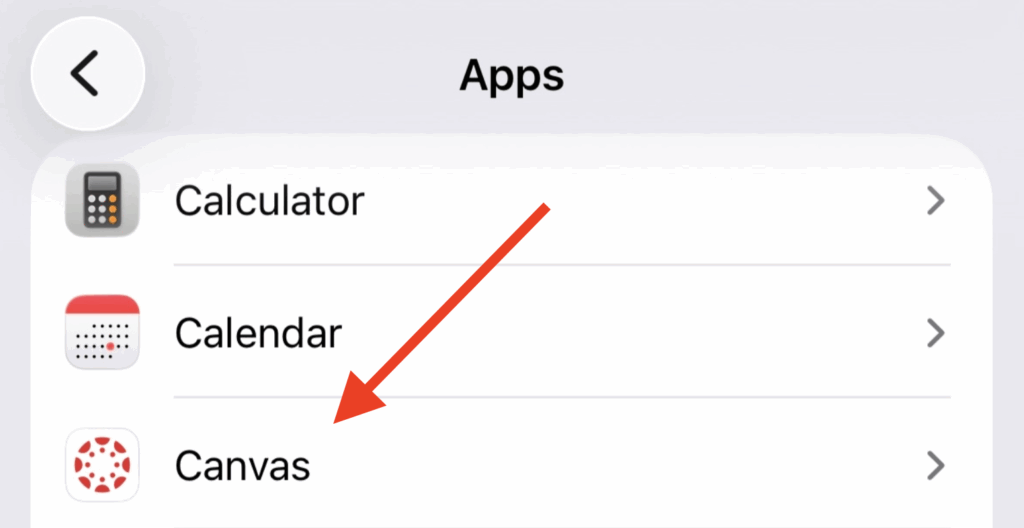
Scroll down and tap on the Canvas app.
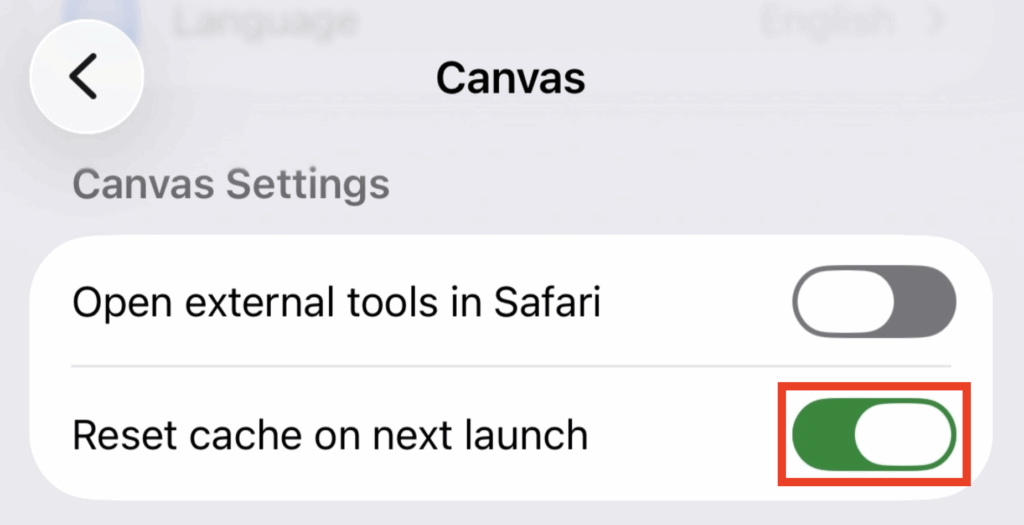
Find the “Reset cache on next launch” option and toggle it on.
Android device
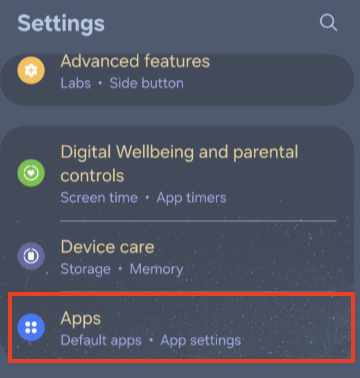
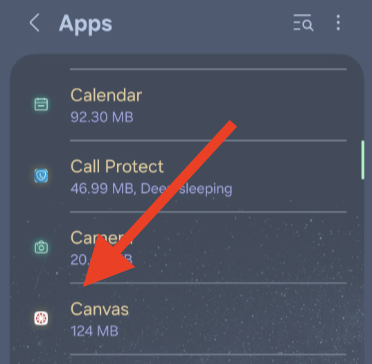
Open the Settings app on your Android device and click on Apps.
Scroll down and tap on the Canvas app.
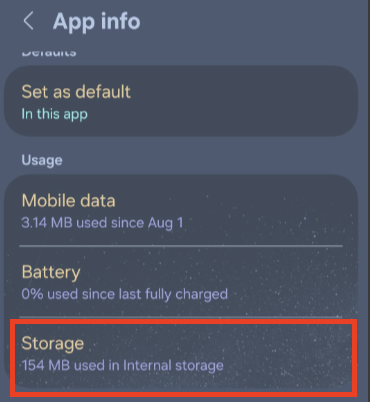
Scroll down and tap on Storage.
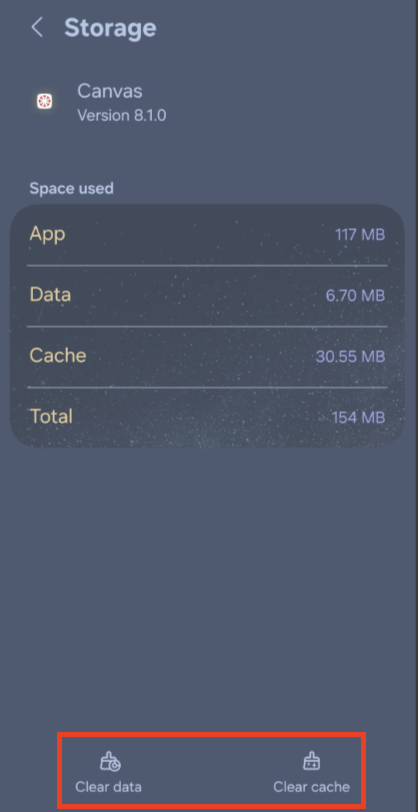
Scroll down and tap on Clear cache. You can also tap on Clear data to remove all app data, including your login information and settings.
Still Having Trouble Accessing Canvas?
In some instances the Canvas mobile app will not be able to connect to the Vermont State Colleges instance of Canvas. Here are two possible solutions for resolving this:
- Try removing and re-installing the Canvas mobile app.
- Do you have a computer with a browser you can use? You can log into Canvas, go to your account settings (the top button on the global navigation menu bar on the far left) and click on QR Code for Mobile Login. Hit Proceed on the popup. Then, on your phone, hit the “QR Code” button on the left below the Find My School button, point your phone’s camera at the screen to get the QR code, and it should log you right in.

We would love to hear from you
As we continue to improve the VSC IT support site, we would love to get your feedback. Please sign-in to the feedback form linked below to share your thoughts.